How to fix BCD boot error on Windows Server 2012
The BCD boot error is actually a common error on Windows Server 2012 and also occurs in Windows Server 2008 (R2). Except for Server operating system, you may also see BCD boot error on Dell, HP, Lenovo laptop or Gateway boot BCD error. In today's article, let Quantrimang.com learn how to fix boot BCD on Windows Server 2012.
Why are you getting a BCD error in Windows Server 2012?
In general, you can get this error the first reboot activated by expanding system partition. Incorrect operation can damage the Boot \ BCD file.
Additionally, the error occurs after adding some applications or programs. Boot Configuration Data is set up for third-party integration, so anyone can deploy tools like diagnostics or recovery options. As a result, the BCD store could be damaged by third-party malware.
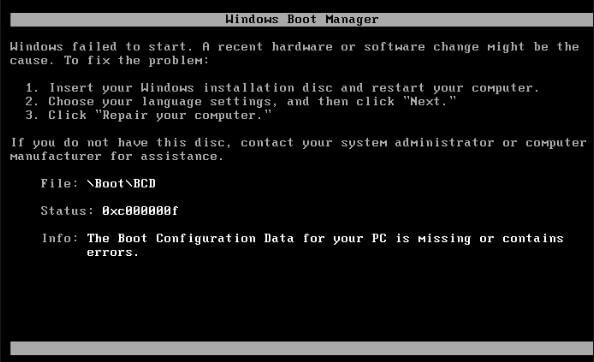 BCD boot error is really a common error on Windows Server 2012
Also, you may get BCD boot error when booting from USB containing MBR or damaged BCD store. Besides, Server installation error will also cause the problem.
In Windows Server 2012, these errors can also occur during PXE boot or in SCCM: “Recovery. Your PC needs to be repaired ”,“ The Windows Boot Configuration Data file does not contain a valid OS entry ”,“ An error occurred while attempting to read the boot configuration data ” and “ After multiple tries, the operating system on your PC failed to start, so it needs to be repaired ” .
What should you do to fix startup BCD error in Windows Server 2012 as well as Server 2008? Let's move on to the next section.
How to fix BCD boot error in Windows Server 2012
Depending on the condition, you need different solutions. If you have a Windows installation or repair disc available, please refer to the steps in the first section. If not, move on to the next section.
Fix BCD error with Windows installation disc
Insert the Windows installation disc and start it up. Follow these steps to rebuild the BCD for the server.
1. At the setup interface, select language, time and keyboard input, then click Next.
2. Click on Repair you computer in the lower left corner.
3. Go to Troubleshoot> Command Prompt to launch CMD . Then, type bootrec / rebuildbcd and press Enter. Wait for the process to complete.
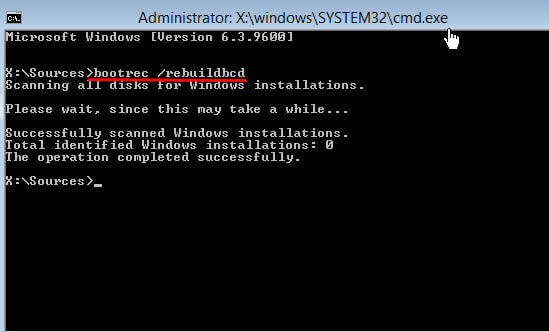 Type bootrec / rebuildbcd and press Enter
4. Close Command Prompt and return to the Choose an option interface . Click Continue. You will be prompted to press any key to get started. Press any key to restart the Server. The BCD file will be rebuilt and the Server can start up properly.
Advice:
If that doesn't work, enter the following commands first and then rebuild the BCD file.
bootrec /fixmbr
 bootrec fixboot
 bootrec /scanos
Fixing the BCD error is quite easy with the help of the Windows installation disc. However, if you don't have an installation disc, but you've made a system backup or a drive backup for Windows Server 2012 on a regular basis, you can revert the Server back to the state when everything worked. In that case, you just need to create a bootable medium to start Server 2012.
Fix the BCD error by fixing the damaged MBR
If the BCD error is caused by a corrupt or problematic MBR, you need to fix the MBR for Windows Server 2012. AOMEI Partition Assistant Server is a comprehensive disk partition manager that will assist you to rebuild MBR for Server 2012, 2019, 2016, 2012 as well as Server 2008. It provides both the CUI and the GUI for the computer beginner and IT professionals alike. AOMEI Partition Assistant Server supports all versions of Windows Server. Let's learn how to fix errors with this software.
Prepare:
- A fully functional PC: Since Server 2012 cannot be booted, you need to prepare a fully functional Windows PC to install AOMEI Partition Assistant Server.
USB or CD / DVD: After installing AOMEI Partition Assistant on that PC, you need to create a bootable media to start Server 2012.
1. USB connection to a "healthy" PC. Install and launch AOMEI Partition Assistant Server on that PC. At the main interface, click Make Bootable Media on the left and follow the steps to complete the creation. Option to burn to CD / DVD and export ISO file is also available. You can also add certain drivers to Server 2012 before creating it.
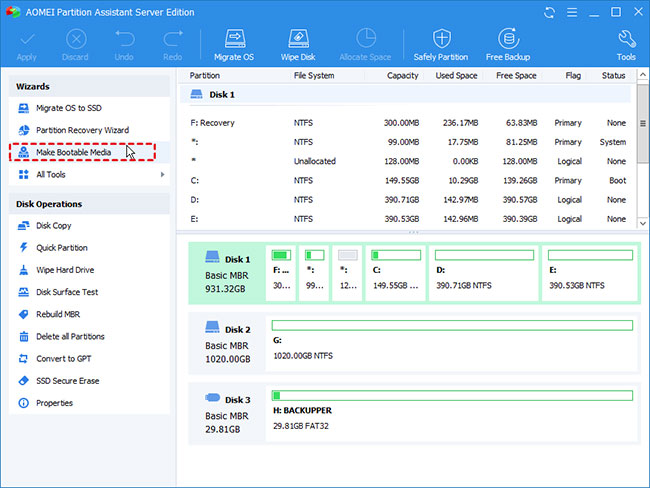 Click Make Bootable Media on the left
2. Insert the bootable media into Server 2012 and start the machine. If it goes back to the local drive, you'll need to change the boot priority to the bootable media in the BIOS.
3. After you log in, AOMEI Partition Assistant Server will start automatically. Right-click on the drive you want to repair (usually the system drive in this case) and choose Rebuild MBR .
4. In the pop-up window, select the MBR type for Windows Server 2012, ie the Windows 7/8/10/2011/2012 option and click OK.
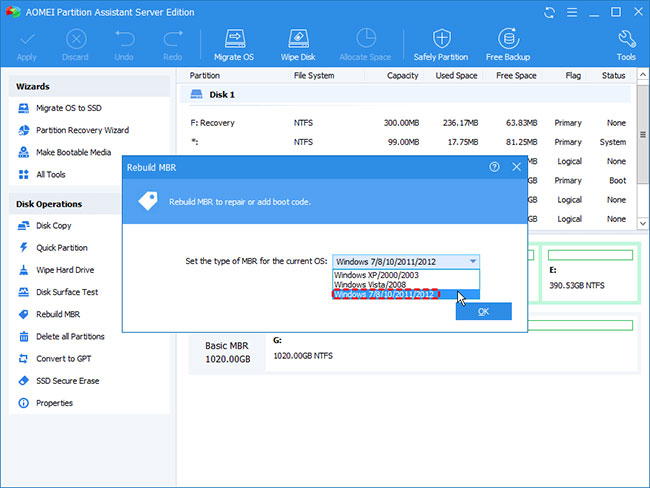 Select the Windows 7/8/10/2011/2012 option
5. Click Apply> Proceed to execute pending operations. Then, restart the Server to repair it.
Advice:
- After successfully booting Windows Server 2012, you can run CHKDSK to see if there are any other errors.
To fix the BCD boot error in Windows Server 2008, you need to select the Windows Vista / 2008 option in step 4.
- Set up the Linksys router with a static IP address
- How to assign a static IP address in Windows 7, 8, 10, XP or Vista
- How to check which Domain Controller holds the FSMO role in Active Directory
- How to display the scrollbar in an app in Windows 10
- Microsoft just canceled an update itself due to a slowdown in Windows 10
The world great event


Operate and exploit advertising by iCOMM Vietnam Media and Technology Joint Stock Company.
Adress: 99 Nguyen Tat Thanh, To 2, Khu 6, Thi tran Tan Phu, Tan Phu, Dong Nai.
Email: phuongtran2191@gmail.com | Tel: (+84) 984654960
Editor in chief: Tran Nha Phuong
Company: Lucie Guillot (Nha Phuong Tran)